Kanban License Required
License Required
Kanban features are available only after license activation.
Kanban view can display table data in Kanban mode, grouping data according to a specified field for easier viewing and management.
Creating a Kanban
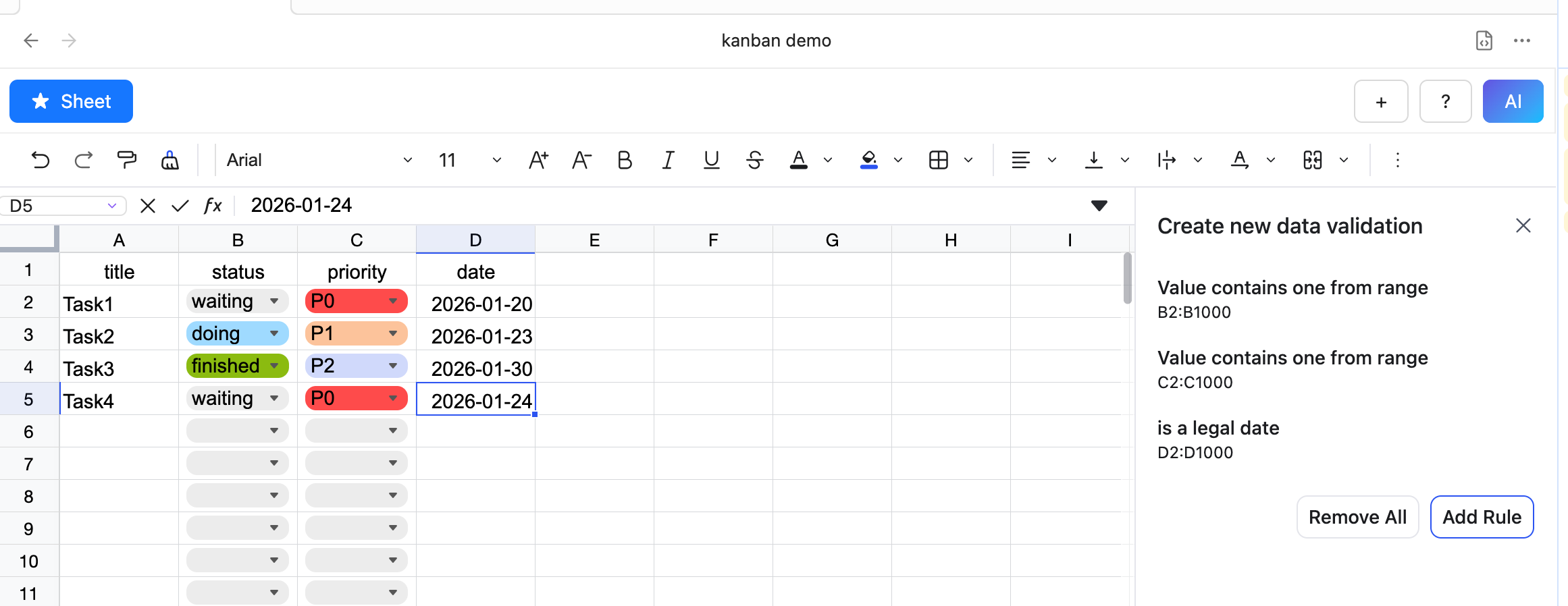
- The table data must meet certain requirements:
- The first row must contain field names.
- One column must serve as the grouping field; set a drop-down list in data validation to designate this column.
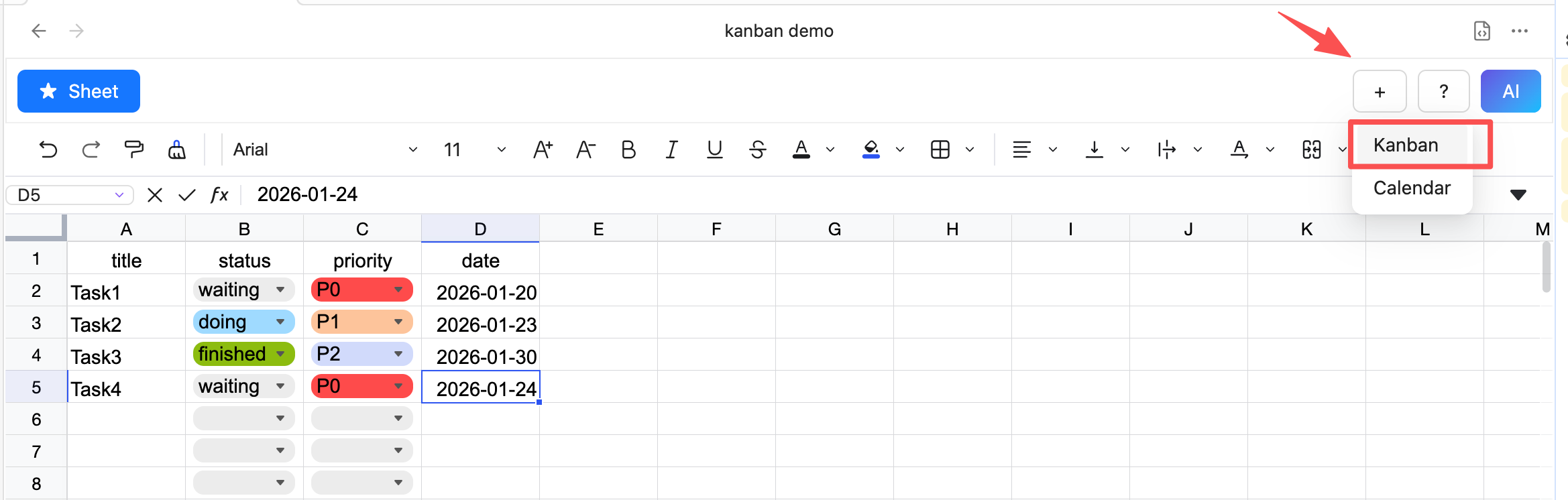
- Click the plus button and choose “Add Kanban View”.
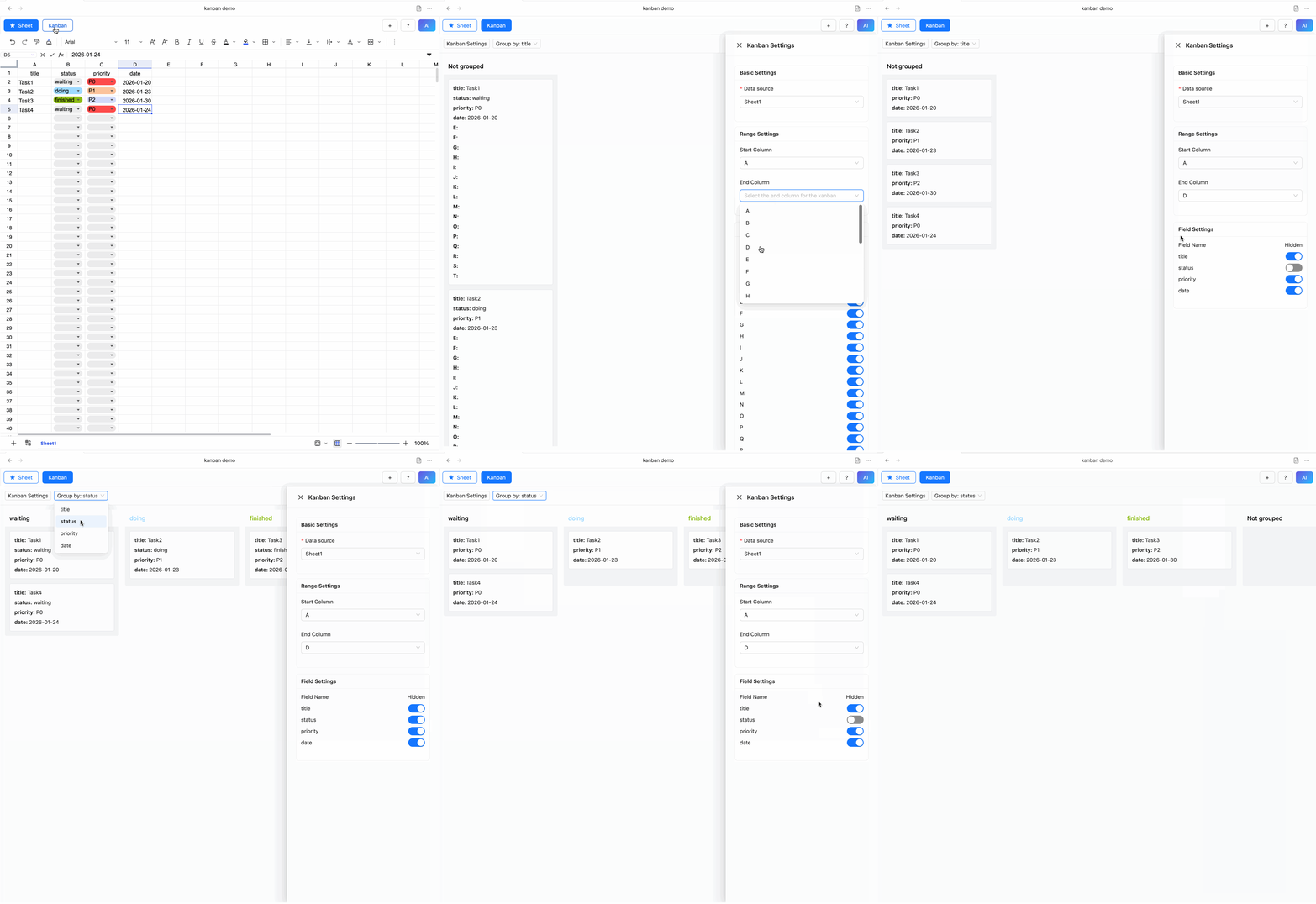
- Switch to Kanban view, click Kanban Settings to open the settings dialog. Configure the data source, range, fields, etc.
- Set the grouping field.
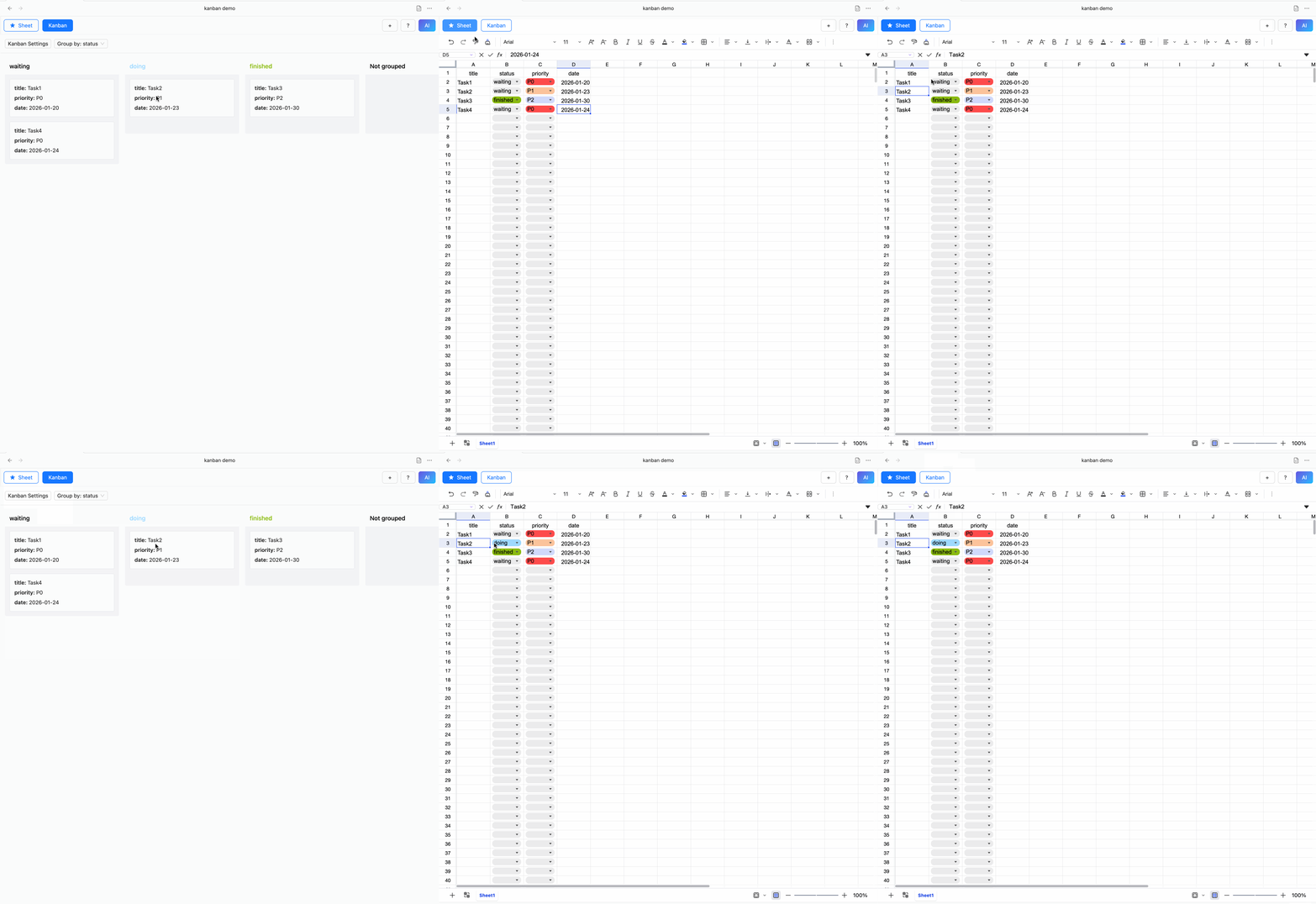
Change Data via Drag-and-Drop
Dragging cards in the Kanban will automatically update the corresponding data in the sheet.