
Embed Chart Link License Required
License Required
Embed Chart Link features are available only after license activation.
This guide explains how to embed a chart from Sheet Plus directly into your Markdown notes using a chart link.
No screenshots assumed. No prior knowledge required.
What is a Chart Link?
A chart link allows you to embed a chart generated from a spreadsheet inside any Obsidian note, just like an image or block embed.
This is useful when you want to:
- display charts next to written analysis
- reuse the same chart in multiple notes
- keep data and visualization connected
1️⃣ Create or Open a Spreadsheet
- Open an existing spreadsheet in Sheet Plus, or create a new one
- Make sure your data is ready for visualization
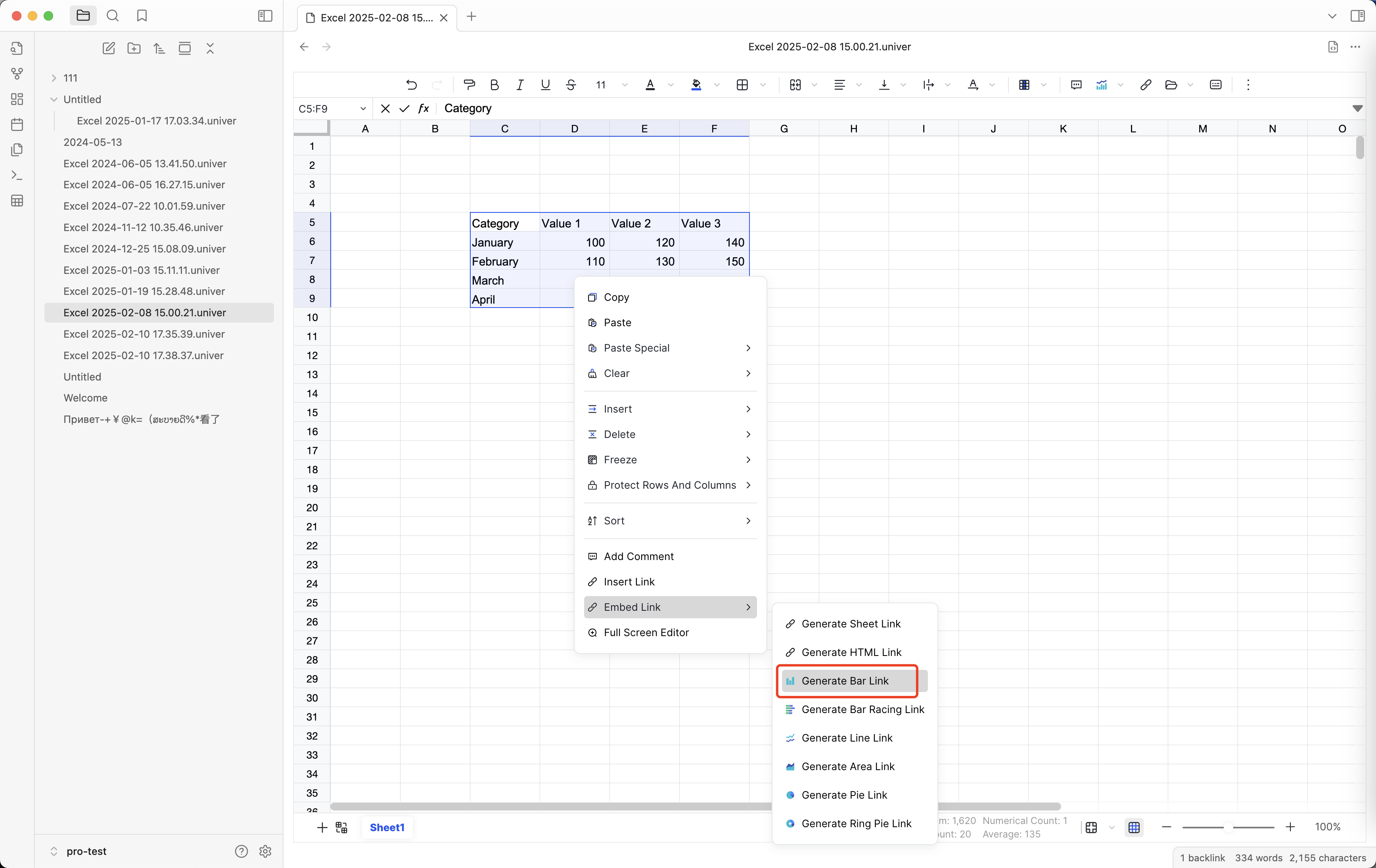
2️⃣ Generate a Chart Embed Link
- Select the data range you want to visualize
- Create or select a chart inside the spreadsheet
- Right-click inside the sheet
- Choose
Embed Link - Click
Generate Chart, choose the appropriate menu for different chart types
Sheet Plus will now generate a chart embed link and copy it to your clipboard.
ℹ️ The chart link is generated via Right-click → Embed Link → Generate Bar Link
3️⃣ Embed the Chart in a Markdown Note
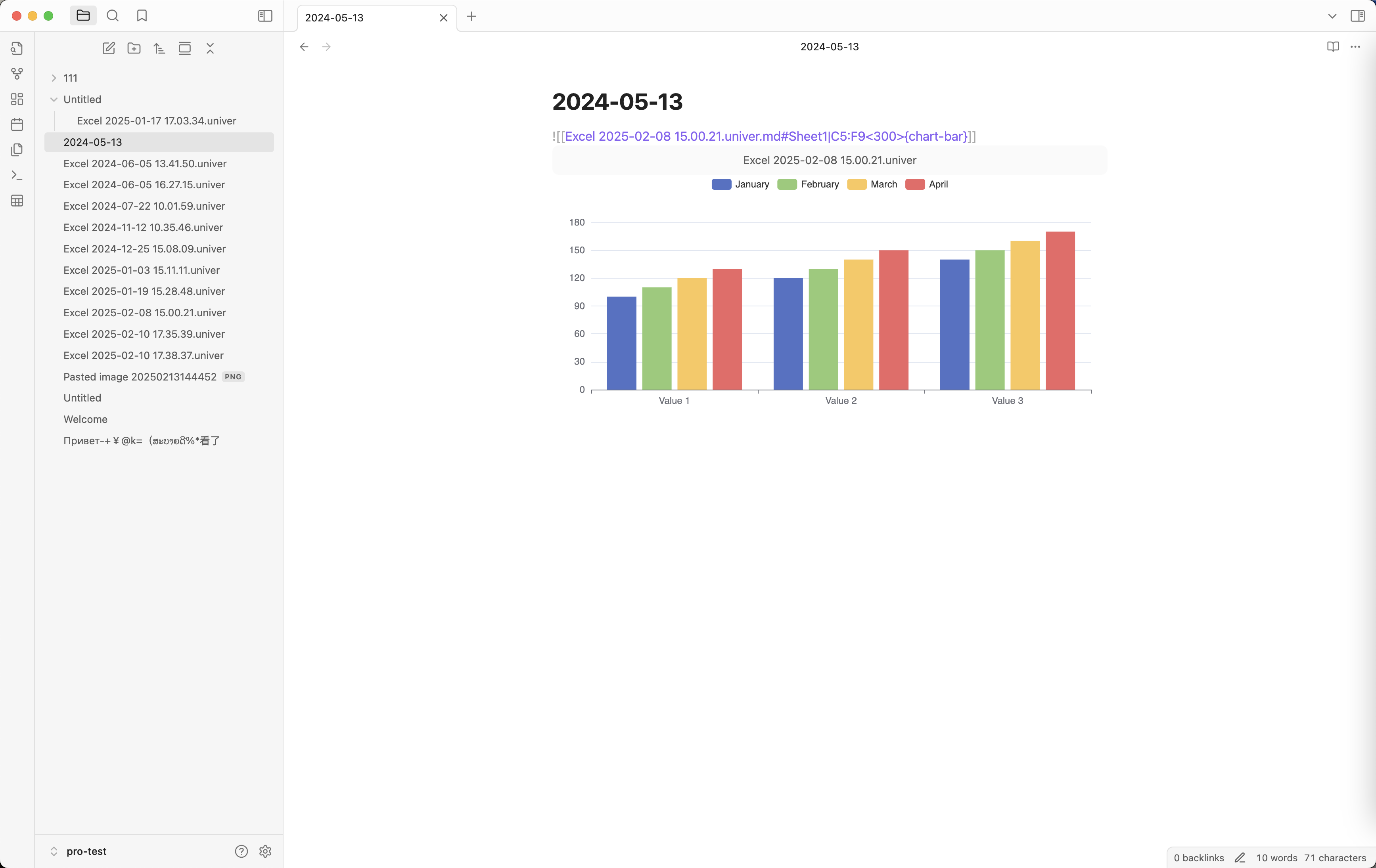
Open any Markdown note and paste the link using Obsidian embed syntax:
![[your-chart-link]]Once rendered, the chart will appear directly inside the note.
Example
![[Excel 2025-06-19 09.35.54.univer.md#Sheet1|B5:D10<300>{chart-bar}]]The chart will stay in sync with the spreadsheet data.
Key Behavior
- ✅ The embedded chart updates automatically when the data changes
- ✅ The same chart can be embedded in multiple notes
- ✅ The chart is read-only when embedded
- ⚠️ Editing the chart must be done inside the Sheet Plus spreadsheet
Common Use Cases
Embedding charts works especially well for:
- Budget and expense reports
- Progress tracking
- Study or habit statistics
- Project dashboards
- Weekly / monthly summaries
Troubleshooting
The chart does not appear
- Make sure the chart still exists in the spreadsheet
- Verify the link was copied using Embed Link
- Confirm the plugin is enabled
The chart is not updating
- Ensure the source spreadsheet was saved
- Reopen the note to refresh rendering
Feedback
If you encounter issues or have suggestions:
- 🐛 Open a GitHub Issue
- 💬 Ask in Discord
- 📧 Email: ljcoder@163.com
Your feedback helps improve both documentation and features.