Skip to content

Quick Start

What is the REST API?

The REST API allows you to access and manipulate spreadsheet data using the HTTP protocol. For example, you can retrieve data from a spreadsheet or update spreadsheet content through the REST API.

It also supports AI clients like Claude, which can call the REST API by adding the obsidian-sheet-plus-mcp-server.


How to Use

Calling the REST API via Claude

You can also use Claude to call the REST API for automation.

  1. Open the Claude Desktop application
  2. Open the Settings menu
  3. Go to the Developer tab in the settings page
  4. Click Config to configure the MCP Server
  5. In the REST API management page, click Copy MCP Server Config, then paste the configuration into the config file
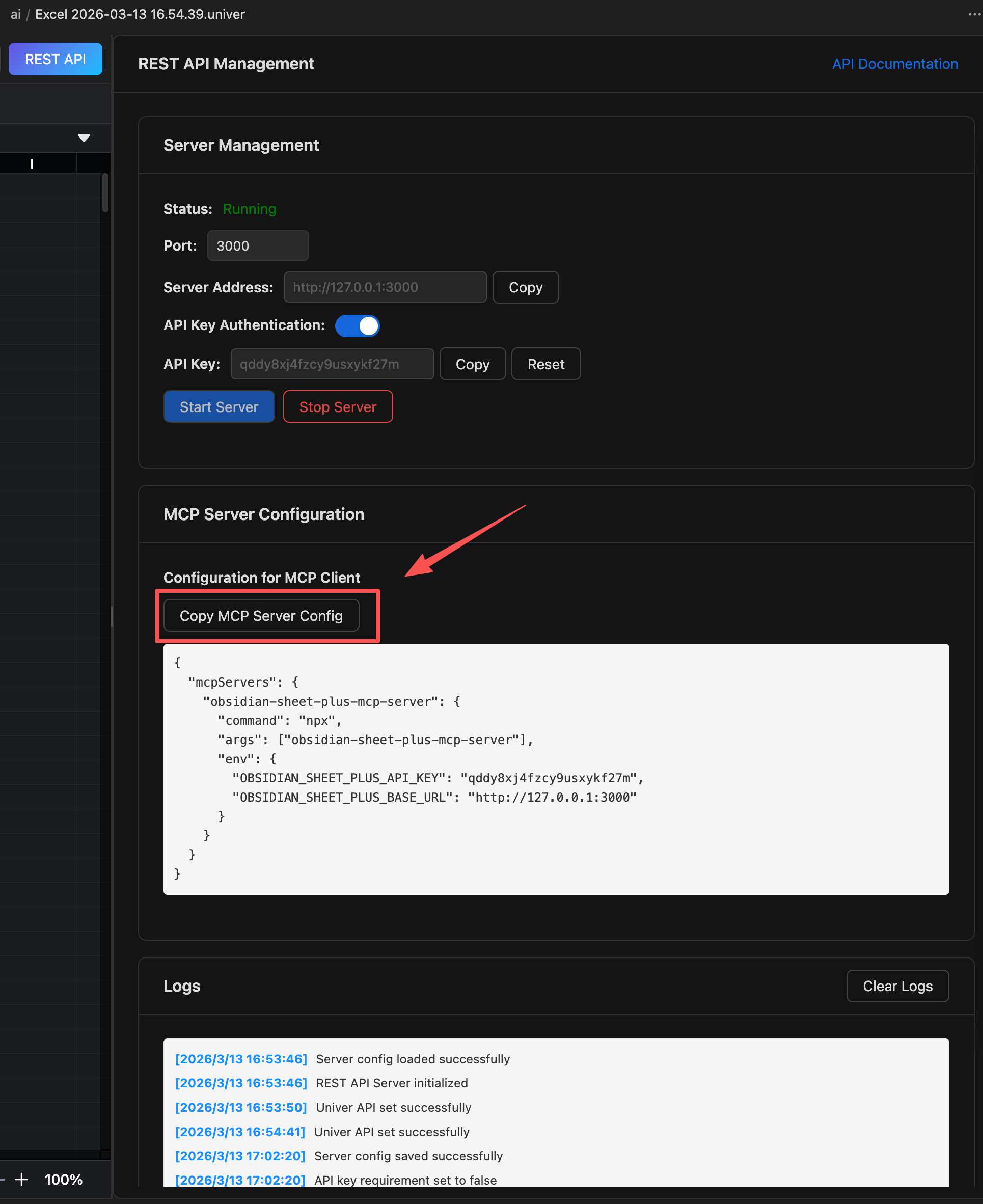
  6. Restart Claude Desktop. You should see that the configuration has taken effect in the chat interface
  7. In the chat, enter the data you want to insert — Claude will automatically call the REST API to insert it
  8. The first time you use it, you’ll need to approve the MCP Server request. Click Allow to continue

Calling the REST API via HTTP Requests

You can call the REST API using HTTP requests. This allows you to integrate spreadsheet operations into your automation scripts.

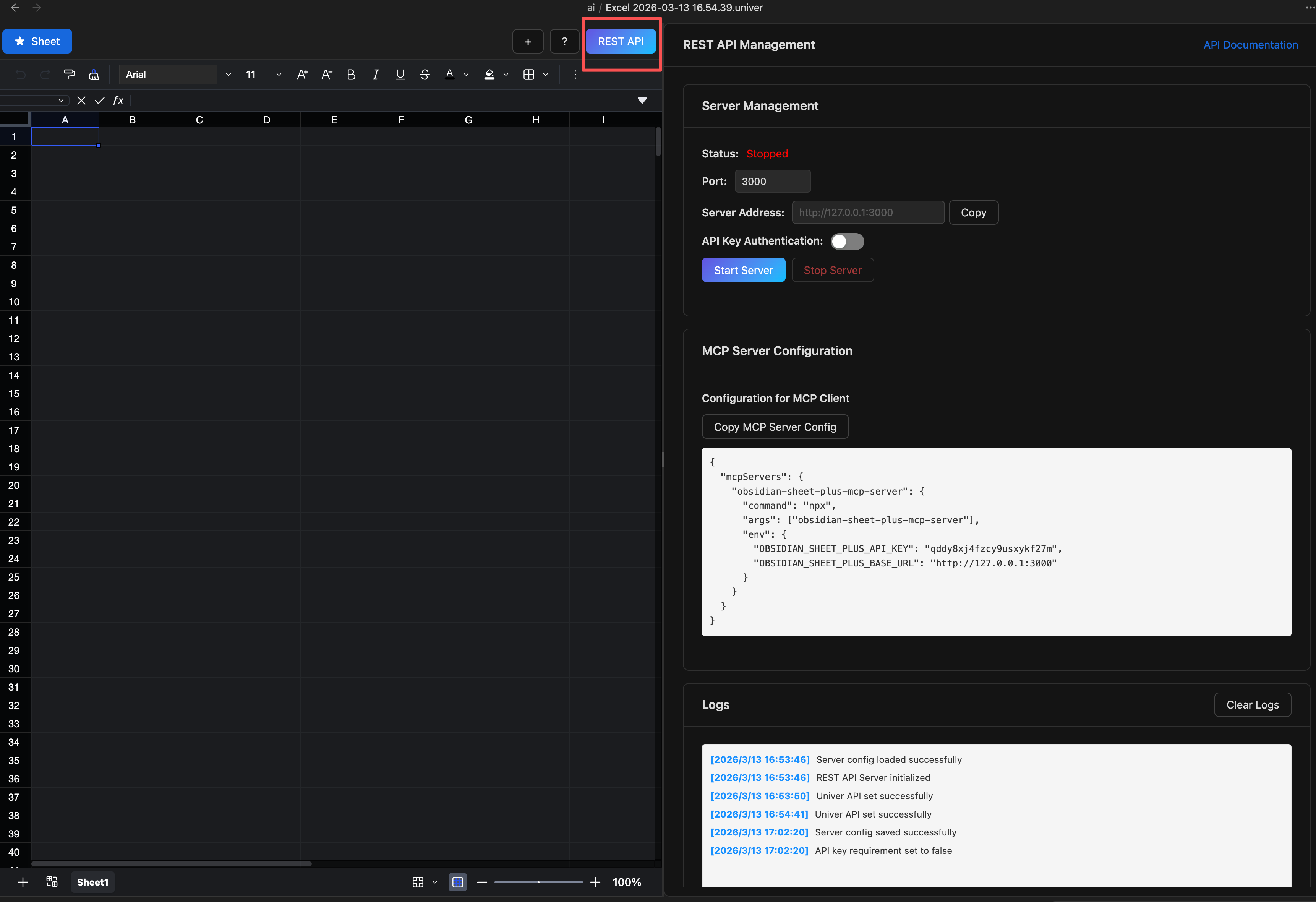
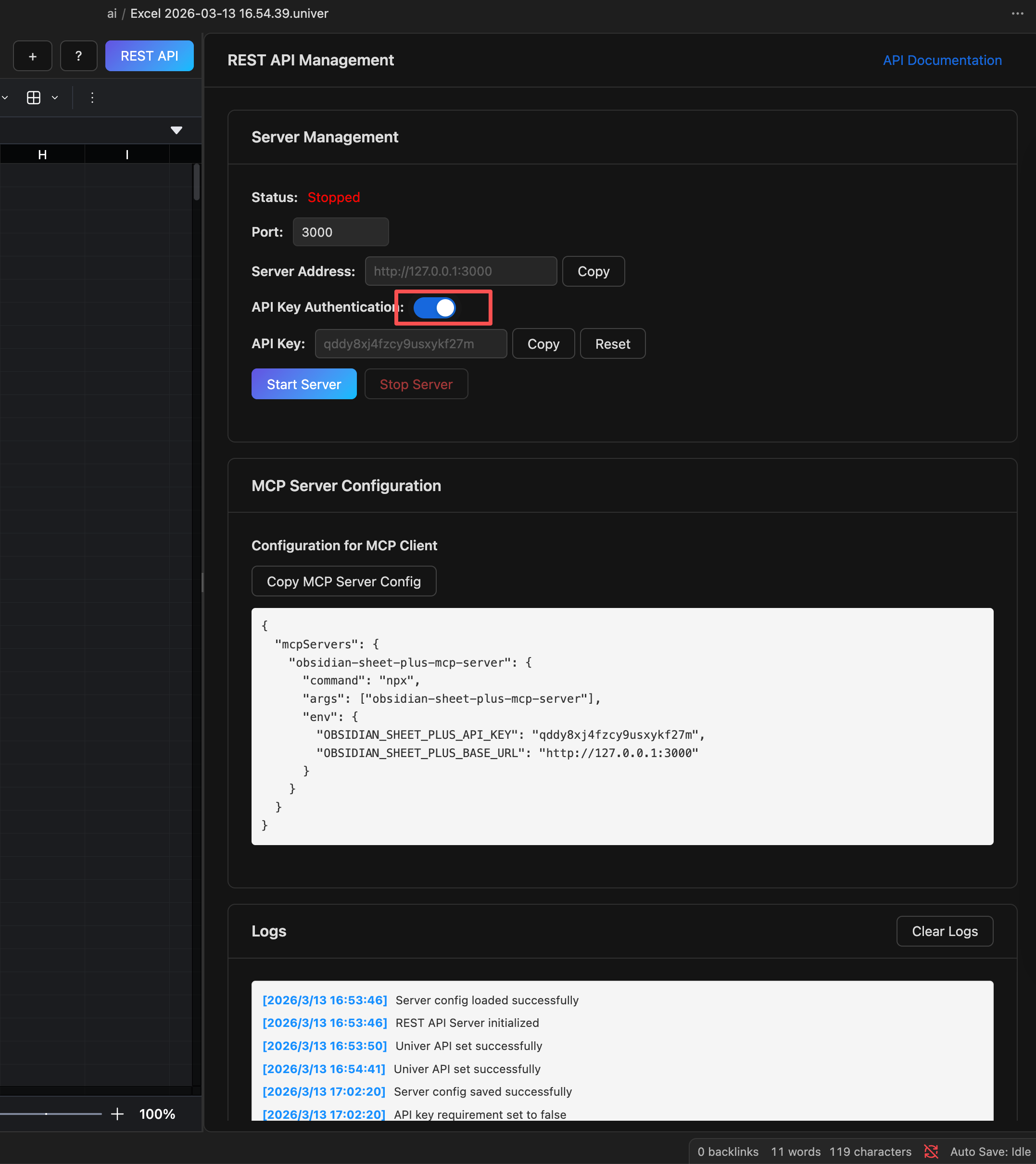
  1. Click the REST API button to open the REST API management page.

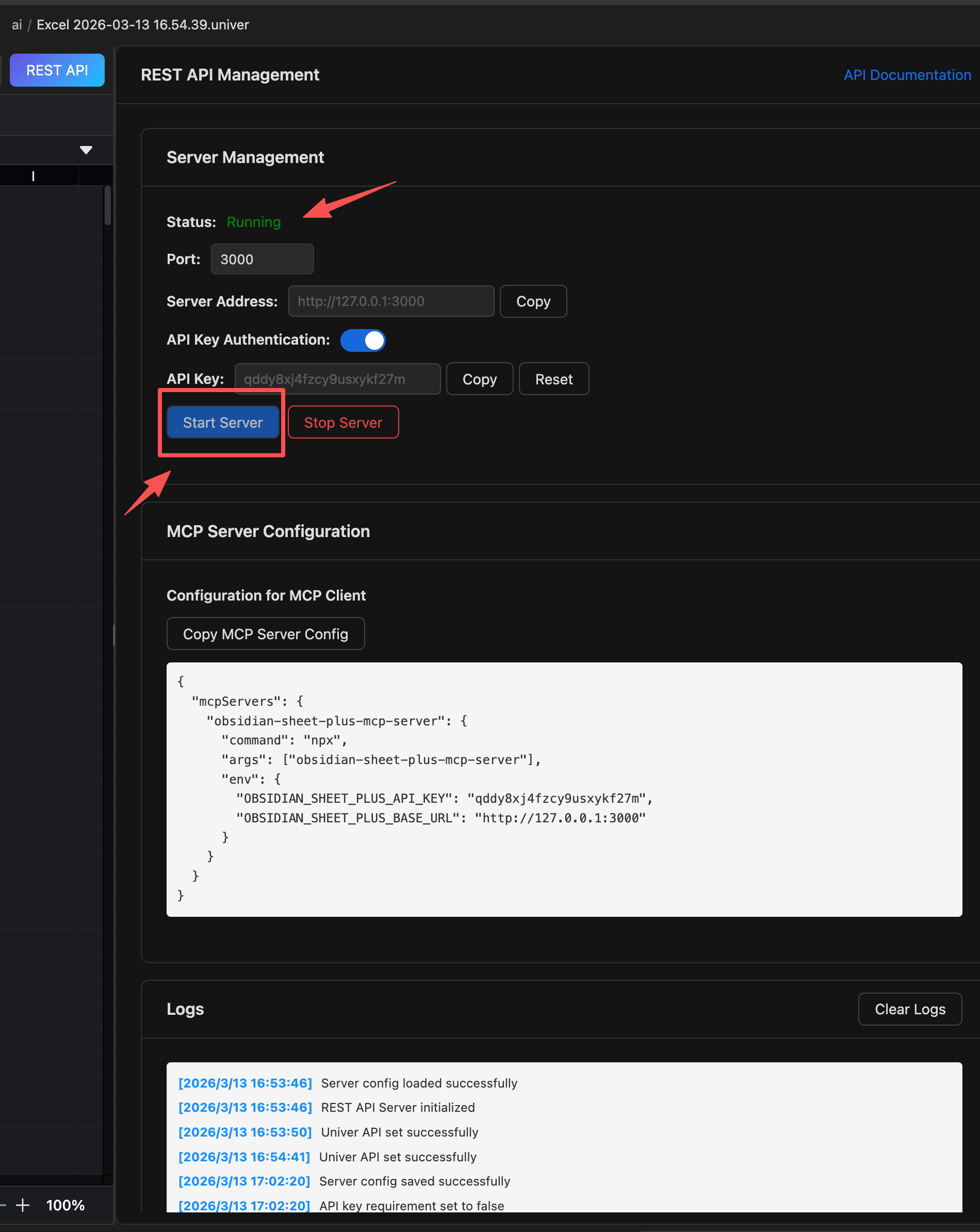
  2. Click Start to launch the REST API service.

  3. Check the Log panel to confirm that the service has started successfully.

  4. Once started, you can call the REST API using HTTP requests. Next, we’ll demonstrate how to use it through the online API documentation. Of course, you can also call it from your own automation scripts.

  5. Open the online API documentation website.

  6. Set the API Key

    • Click the Authorize button in the top-right corner of the page
    • Enter obsidian-sheet-plus as the API Key in the popup dialog
    • Click Authorize
  7. Call get_workbook_data

    • Click GET get_workbook_data
    • Click Try it out
    • Click Execute
    • You can view the returned JSON data in the Response body section below
  8. Call set_sheet_data

    • Click POST set_sheet_data
    • Click Try it out
    • In the request body, enter the range and values fields
    • Click Execute
    • You can view the returned JSON data in the Response body section below